AI Photo Editing System For Real Estate Company
This is an example UI built to illustrate the idea, not the actual product. Design can be customized to whatever look and workflow fits the task at hand.
How a Real Estate Photography Studio Cut Manual Editing Time and Processed Images Across Properties Using AI Automation
Real Estate Photography | AI Image Enhancement | n8n + Airtable + fal.ai + Dropbox
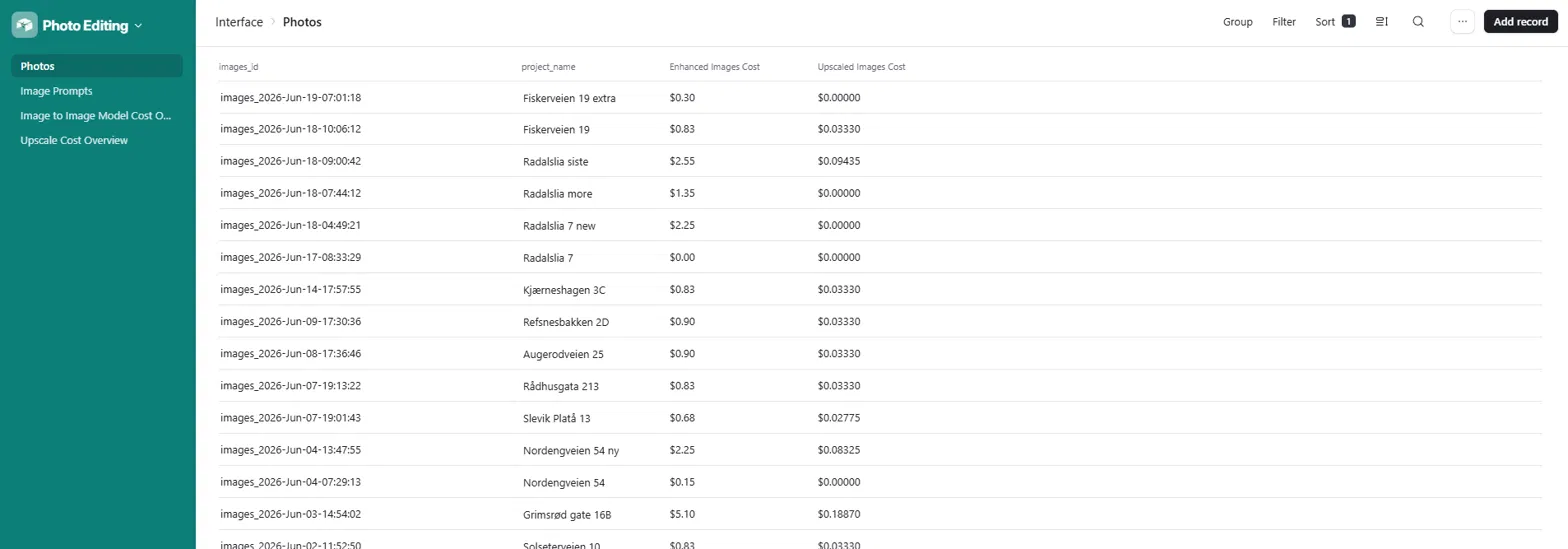
Photos interface — all active projects listed with property names, per-batch enhance costs, and upscale costs
The Situation
A professional real estate photography studio shoots properties across Norway. After every shoot, the editing queue fills fast: dozens of raw images per property, each needing enhancement, colour grading, and in many cases a full day-to-dusk conversion before delivery. The studio had quality standards to maintain and a growing client list. The bottleneck was not the camera work. It was everything that happened after.
The Problem
Manual post-processing meant a human had to touch every image. Running images through editing software one at a time, applying consistent prompts or instructions across a batch, tracking which files had been processed, and managing the output folders in Dropbox all added up to hours of repetitive work per project. Day-to-dusk conversions required even more effort: deciding on the right lighting transformation for each image, keeping results consistent across a set, and handling re-edits when a result missed the mark. There was no system. Just a photographer, editing software, and a growing backlog.
The Solution
We built a 4-workflow n8n pipeline connected to an Airtable base that takes a folder of raw property images and produces enhanced, upscaled, version-tracked output files organised into Dropbox automatically. The operator selects an AI model and an image prompt, clicks Enhance, and the system handles the rest: fetching images, submitting to fal.ai, polling for completion, uploading results to Dropbox, and writing every output back to Airtable with full cost tracking.
The Airtable interface gives the operator a clean per-project view across five tabs: Enhance Bulk Images, Re-enhance Single Image, Upscale Images, Upscaled Original Images, and Upscaled Enhanced Images. No n8n access needed at any point in the workflow.
The 4 n8n workflows:
- Enhance Bulk Images: fetches all original images for the project from Dropbox, loops through each one, submits to the selected fal.ai image-to-image model with the chosen prompt, polls for completion, uploads enhanced results back to Dropbox, creates Transposed Image records in Airtable per file, and updates the project status on completion

- Re-enhance Single Image: takes one existing enhanced image, resubmits it to fal.ai with a new or refined prompt, retrieves the result, uploads to Dropbox, creates a version record (v1, v2, etc.) in the Image Versions table, and updates the Transposed Images record with the latest output

- Upscale Bulk Images: takes either the original or enhanced images for a project, submits each to the fal.ai ESRGAN upscale model, polls for completion, uploads upscaled files to Dropbox, and creates Upscaled Images records in Airtable with cost tracking per file

- Photo Editing Error Workflow Logger: catches any error thrown across the three production workflows, sends a Gmail notification with error details, and creates a ClickUp task for follow-up so no failed run goes unnoticed
The prompt library is managed directly in Airtable. Named prompts like Day to Dusk v3, Sunset, and Enhance Quality each store a full AI instruction set. The operator picks one per project batch. New prompt variants can be added without touching n8n.
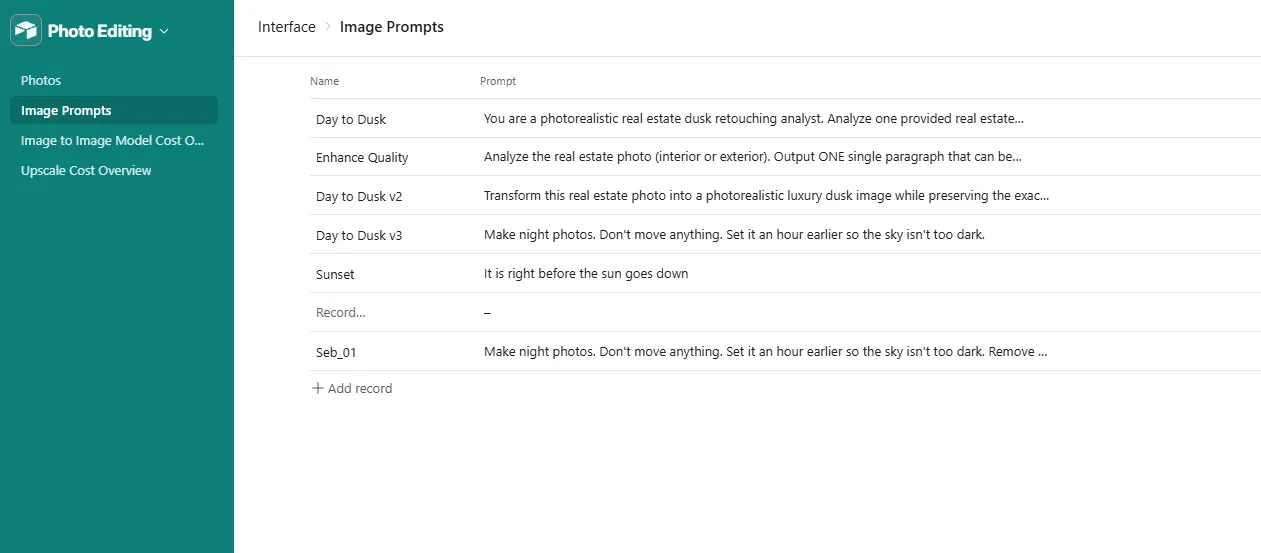 Image Prompts — named prompt library including Day to Dusk, Day to Dusk v2, Day to Dusk v3, Sunset, Enhance Quality, and Seb_01 with full prompt text stored per entry
Multiple AI models were tested and benchmarked directly inside the system. The model cost overview tracks cost per image and total spend by model across all projects, making it straightforward to compare output quality against running cost.
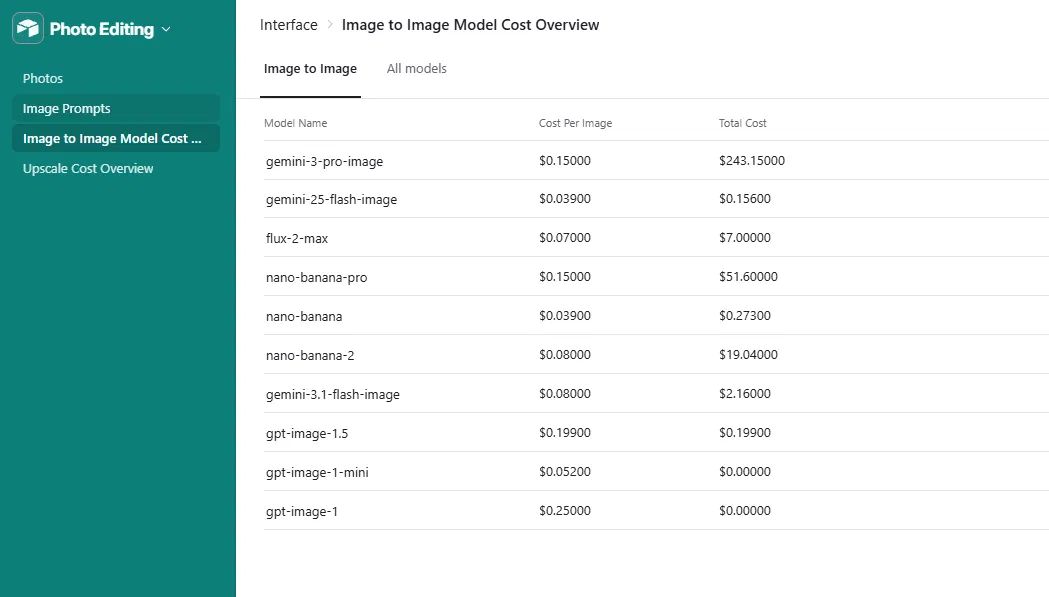
Image to Image Model Cost Overview — all tested models listed with cost per image and total spend: gemini-3-pro-image ($0.15/image), nano-banana-pro ($0.15/image), flux-2-max ($0.07/image), and others
The Re-enhance Single Image tab lets the operator pick any previously enhanced image from the list, swap the prompt, and generate a new version without rerunning the full batch. Each re-enhancement creates a numbered version record (v1, v2) so the operator can compare outputs and approve the best one.
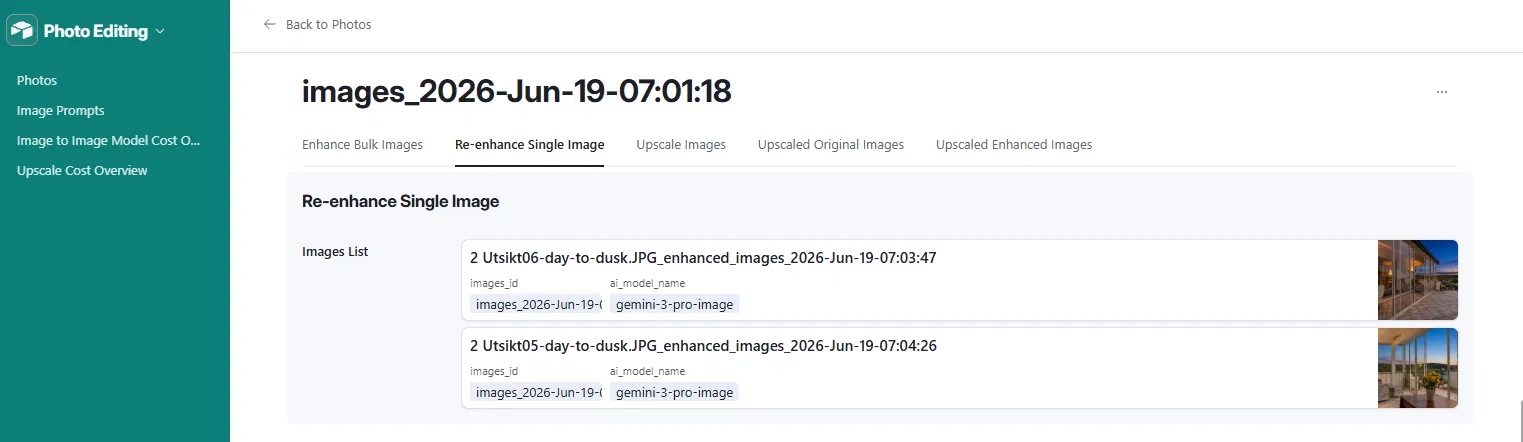 Re-enhance Single Image tab — Images List showing two enhanced outputs for the selected project, each with images_id, ai_model_name, and a thumbnail preview
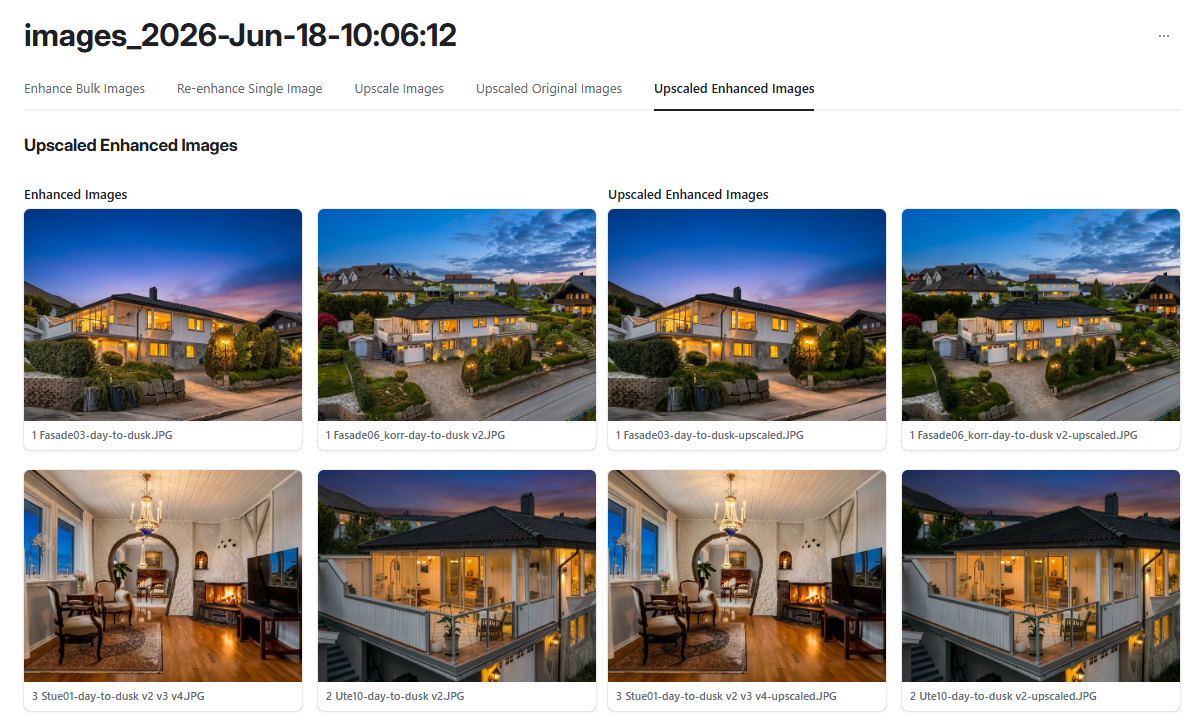
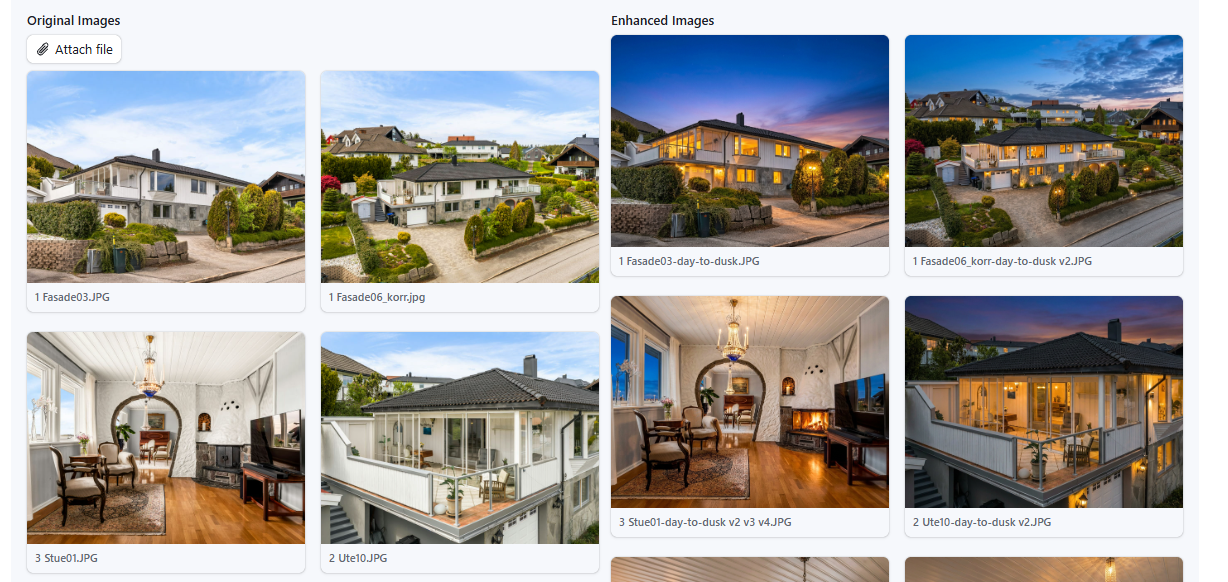
Upscaled Enhanced Images tab — side-by-side view of original daytime photos and day-to-dusk enhanced versions, ready for upscaling
Results
What used to take hours of manual work per property now takes minutes. The photographer no longer touches editing software between shoot and delivery. Every step from fetch to finished file is handled by the pipeline: the operator sets the project up once, clicks Enhance, and the system runs through the entire batch unattended.
Day-to-dusk conversions, previously the most time-consuming edit type, are now a prompt selection. The operator picks a named preset from the library, clicks one button, and the workflow applies it consistently across every image in the batch. No per-image decisions. No manual colour grading. No inconsistency between shots.
Re-edits no longer mean reopening source files. If a single image needs a different treatment, the operator selects it, adjusts the prompt, and clicks re-enhance. A new version is generated and version-tracked automatically. The rest of the batch is untouched.
Output organisation is fully automated. Dropbox folders are created and named per project, enhanced and upscaled files are uploaded into the right location, and every file is logged in Airtable with its status and Dropbox link. The studio no longer manages file structures by hand.
The built-in model benchmarking means the studio can test a new AI model against existing ones without leaving the system. Cost per image and total spend per model are tracked automatically, making the tradeoff between quality and cost visible without any manual spreadsheet work.
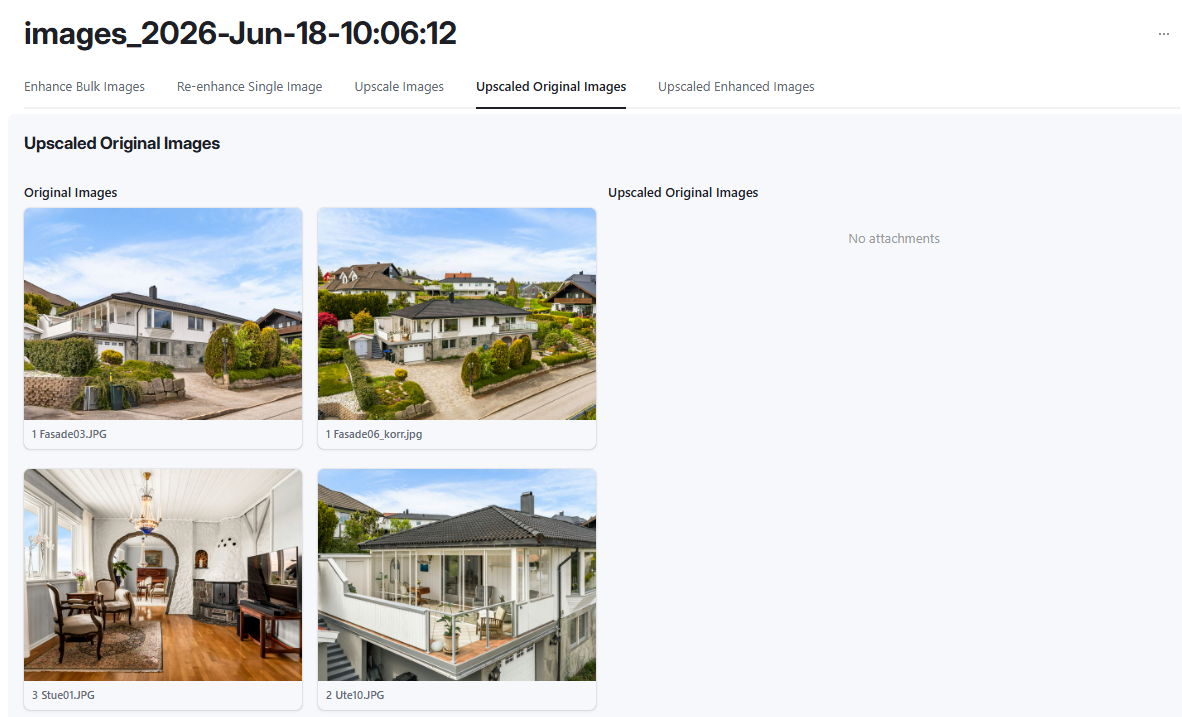
Upscaled Original Images tab — original property photos displayed alongside the upscaled outputs ready for client delivery
How It Worked
Before: the photographer would manually process each image in editing software, apply lighting adjustments by eye, and organise output files into folders by hand. Day-to-dusk conversions meant opening each image individually and making judgement calls on sky colour, interior lighting warmth, and ambient glow. Re-edits required going back to the source file and starting again.
After: one operator, one Airtable interface, a project name, a prompt selection, and a button click. The pipeline handles everything from fetch to delivery.
- Project set up. Operator creates a Photos record in Airtable with the project name, selects the AI model (e.g. gemini-3-pro-image), and picks an image prompt from the library (e.g. Day to Dusk v3). Original images sit in a named Dropbox folder.
- Bulk enhance. Operator clicks Enhance on the Enhance Bulk Images tab. The workflow fetches every image from the Dropbox folder, optionally runs an analysis pass to generate a scene-specific prompt, submits each to fal.ai, polls until complete, compresses the output, and uploads the enhanced file back to Dropbox. A Transposed Image record is created in Airtable per file with status, cost, and Dropbox links.
- Single image re-enhance. If any image in the batch needs a different treatment, the operator selects it from the Re-enhance Single Image tab, adjusts the prompt if needed, and clicks re-enhance. The workflow generates a new version, creates a numbered version record (v1, v2), and updates the Transposed Images table. The operator compares versions and marks the preferred one.
- Upscale.Operator navigates to the Upscale Images tab, selects whether to upscale originals or enhanced images, and clicks Upscale. The workflow submits each file to fal.ai ESRGAN, retrieves the upscaled output, uploads to Dropbox, and creates an Upscaled Images record with cost tracking per file.
- Error handling.Any workflow failure triggers the Error Logger: a Gmail notification fires with the error details and a ClickUp task is created for follow-up. No failed run goes untracked.
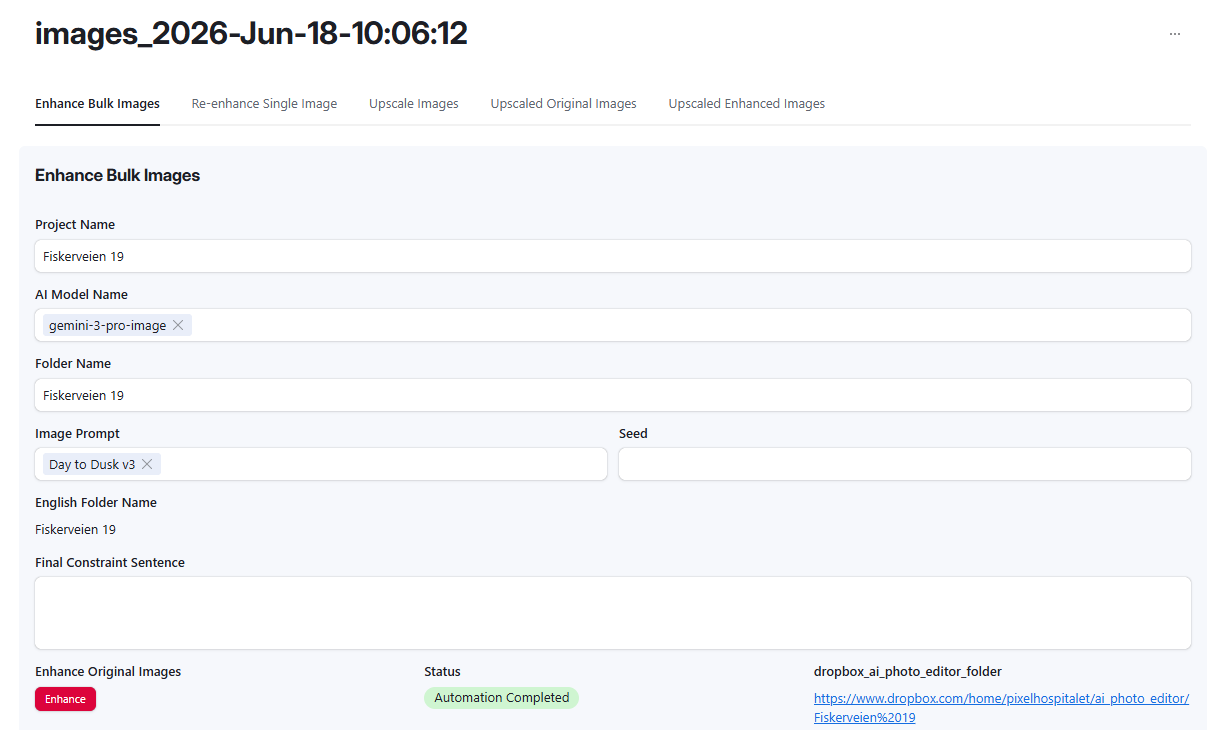
Enhance Bulk Images tab — project name, AI model selector (gemini-3-pro-image), image prompt (Day to Dusk v3), Enhance button, status (Automation Completed), and Dropbox folder link
Want a System Like This?
If you work with high volumes of images and want to move from manual post-processing to a system that handles batches automatically, this is the kind of infrastructure we build.
AI image enhancement pipelines, version tracking, cost monitoring, and Dropbox delivery automation for photographers, agencies, and studios.